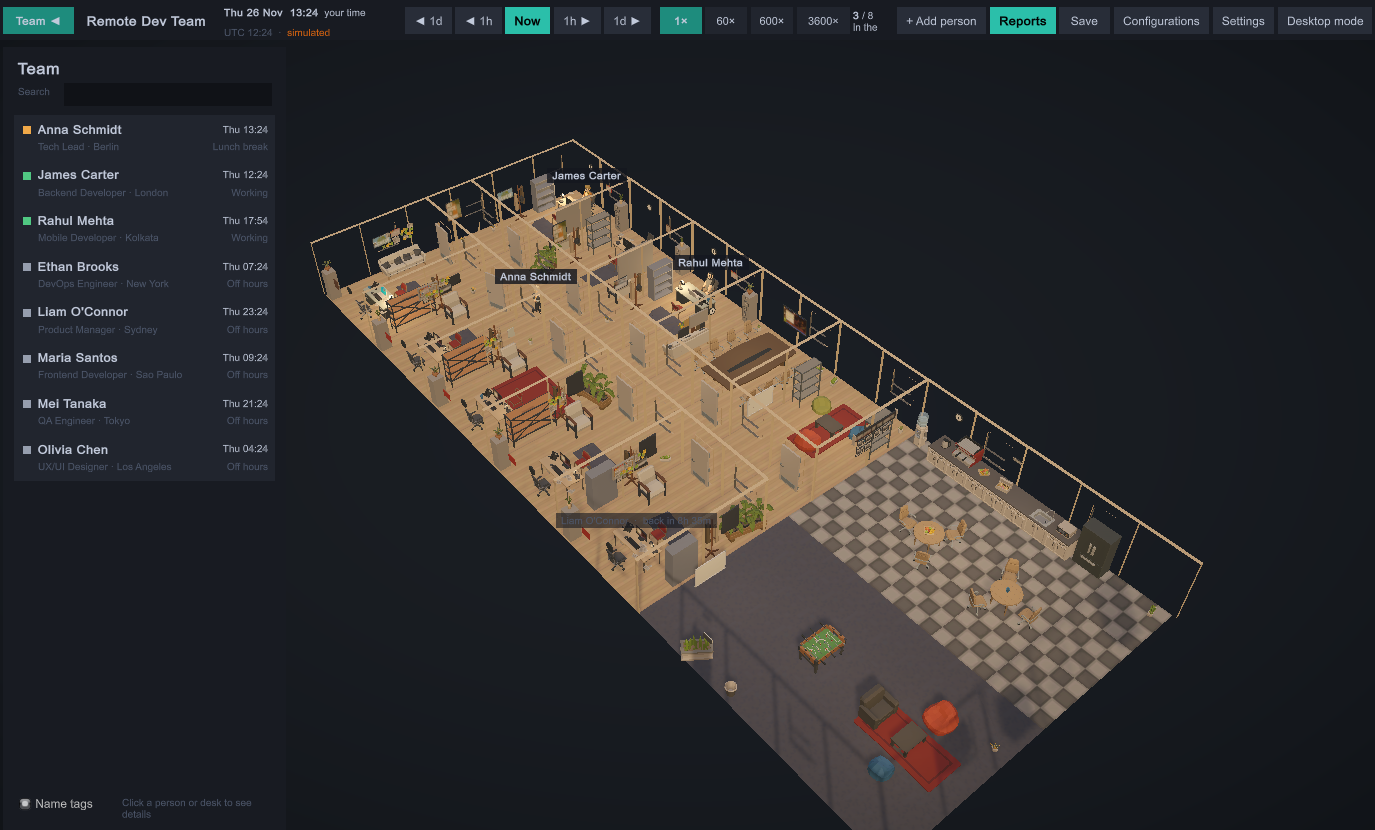
Everyone gets a private office
Each person has a desk, a door and a lamp that turns on when they arrive. They work, get coffee, visit colleagues and chat about their real tasks, then head home. Spare rooms become meeting rooms, focus rooms or a server room.
Time zones and working hours
Set each person's time zone, start time, working days and hours per week. Empty offices show "back in…". You can speed up the clock to watch shifts move around the world, or jump ahead by an hour or a day.
Capacity and time off
Add tasks with hours per week, projects and date ranges, plus vacation, sick days, holidays and training. Monthly reports show capacity, allocation, free hours and utilisation per person and for the whole team, and export to CSV.
Best meeting times
The overlap report shows who is online each hour in your time zone and suggests the slots that suit the most people. Lunch breaks are marked, so you don't book over them.
Shortcut and Jira updates
Connect as many Shortcut and Jira Cloud workspaces as you like. New items, status changes, assignments and comments pop up as speech bubbles from the person who made them, and finishing something gets a small celebration. A read-only token is enough.
Lives on your desktop
The app can run as a see-through desktop companion: only the office is visible, and clicks on empty space go to the windows behind it. Dock it to a corner of any screen, keep it on top, and start it when you log in. Press F11 for a normal window.
Several plans side by side
Keep separate configurations such as "Q1 plan", "Q2 plan" or "Team B", and duplicate or switch between them. Store them in a OneDrive, Dropbox or network folder to share them between computers.
Your team data stays with you
Everything is saved as JSON files on your computer, in Documents/Office Simulator by default. The app only sends anonymous usage statistics (sessions and device type, never team data), and you can turn that off in Settings. See the privacy policy.
 Office Simulator